
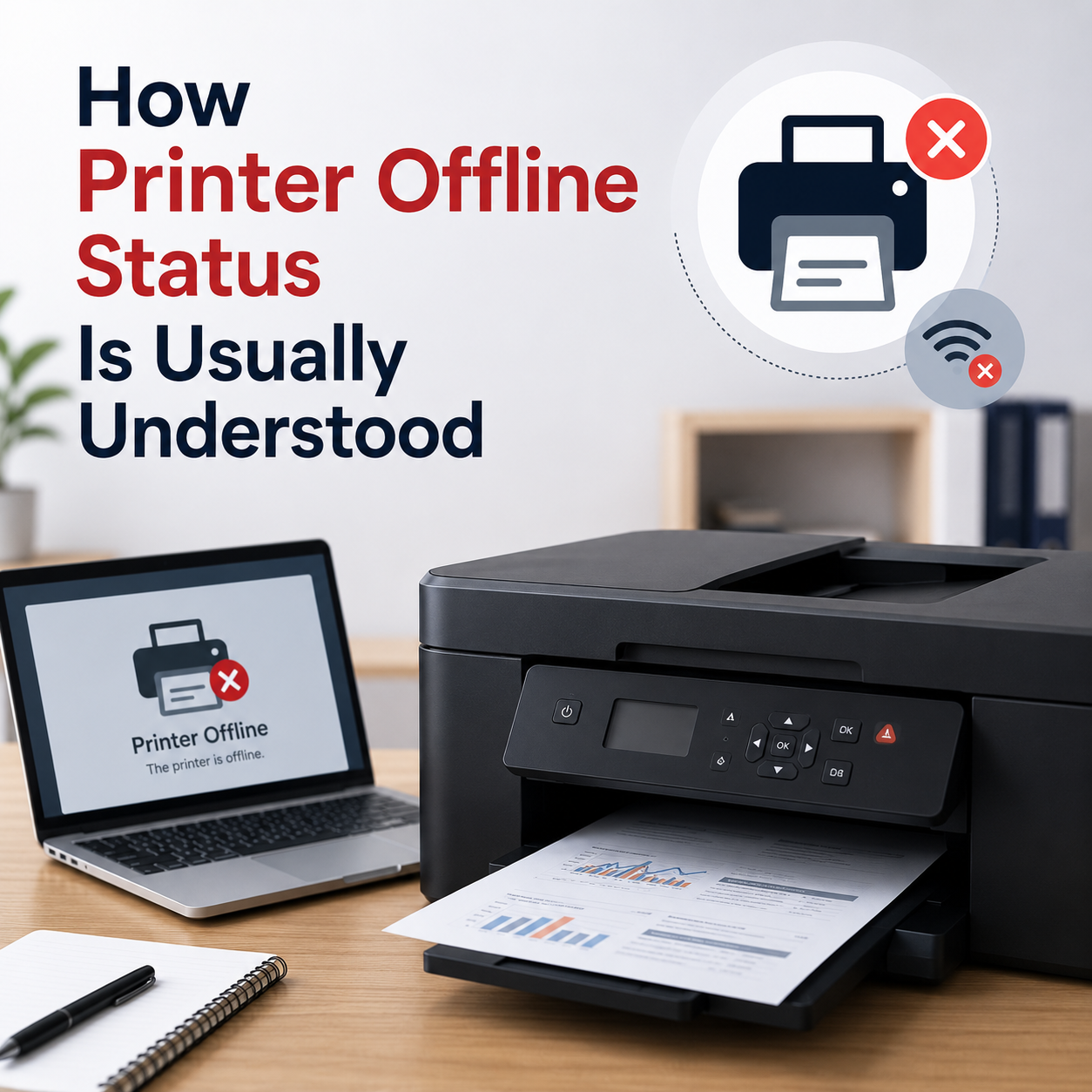
How Printer Offline Status Is Usually Understood
Understanding why your printer shows as "Offline" even when it's plugged in.
What are you seeing?
Match your printer status with these common visual indicators.
Printer Offline
The printer appears in your list but is grayed out or says "Offline".
Driver Unavailable
Win cannot find the software needed to talk to your printer.
A printer "Offline" status is one of the most common frustrations for users. In most cases, it doesn't mean the printer is broken; it simply means the computer and the printer have lost their "handshake."
Common Visual Cues
"When you open your 'Devices and Printers' folder, look at the printer icon. If it looks faded or has a small gray circle, the system is telling you it can't find the device on the network or through the cable."
Why does this happen?
- Sleep Mode: Many printers enter a deep sleep to save power and don't "wake up" when a print job is sent.
- IP Conflicts: If your router restarts, it might give your printer a new address that your computer doesn't know about yet.
- Stuck Queue: An old, failed print job can block the entire path, making the printer look offline.
Understanding the fix
Clear the Print Queue
Open your printer settings and "Cancel All Documents." This resets the communication path between your PC and the printer.
Uncheck "Use Printer Offline"
In the printer menu, ensure the "Use Printer Offline" option is NOT checked. Sometimes Win accidentally toggles this on.
Frequently Asked
Why does it go offline after a restart?
It's often a network timing issue where the printer doesn't reconnect to WiFi fast enough for the computer to see it.
Can a bad cable cause this?
Yes, a frayed USB cable or a loose connection can cause the "Offline" status to flicker on and off.