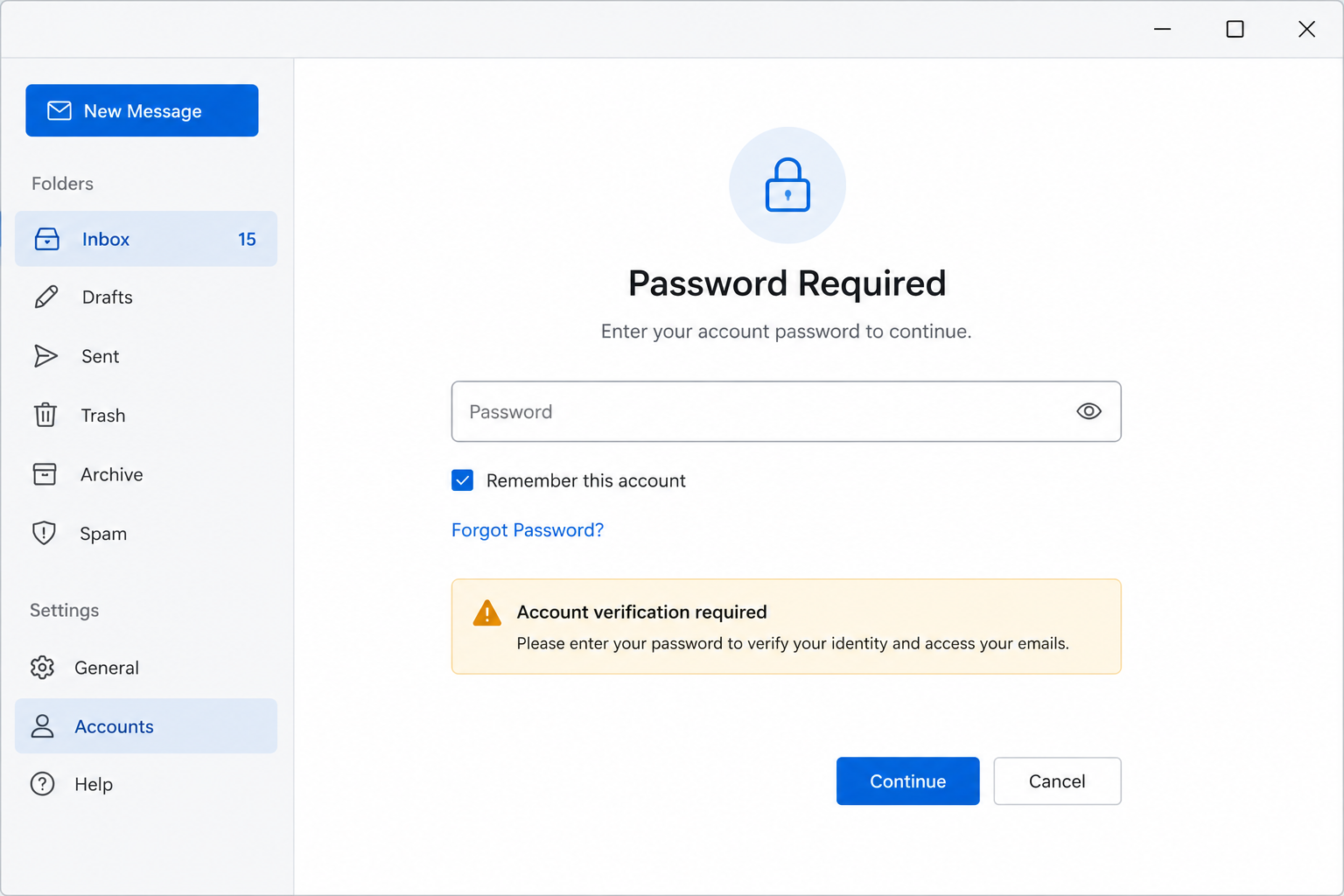
Password Requested
What you see
Email app asks to enter the password again.
What it may mean
The account may need authentication, updated password, or security verification.
Where to check
Password, 2-step verification, account security
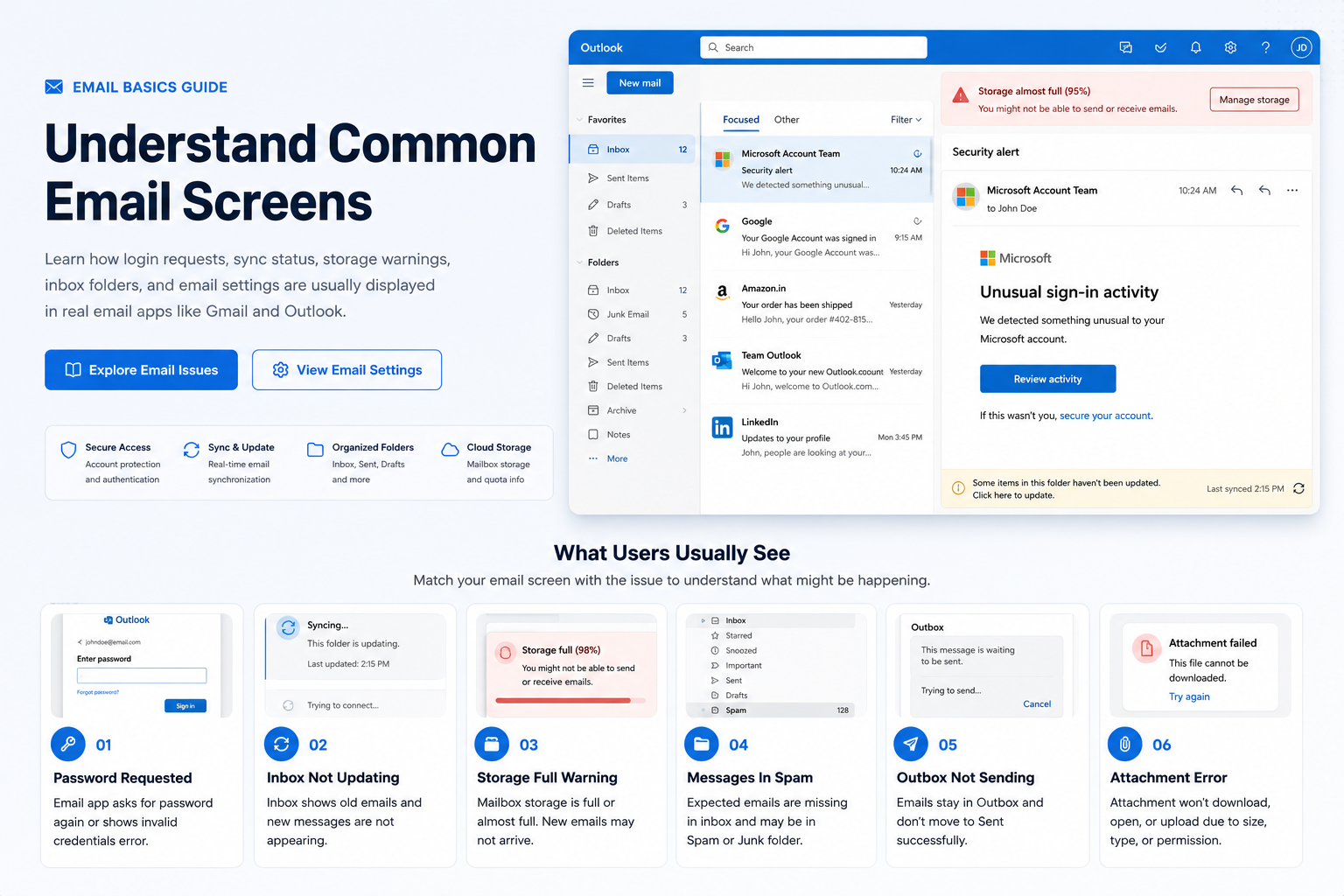
Learn how password prompts, sync status, inbox folders, storage warnings, outbox messages, and email settings are usually displayed.
These cards explain common email screens in a simple way so readers can understand what they are looking at.
What you see
Email app asks to enter the password again.
What it may mean
The account may need authentication, updated password, or security verification.
Where to check
Password, 2-step verification, account security
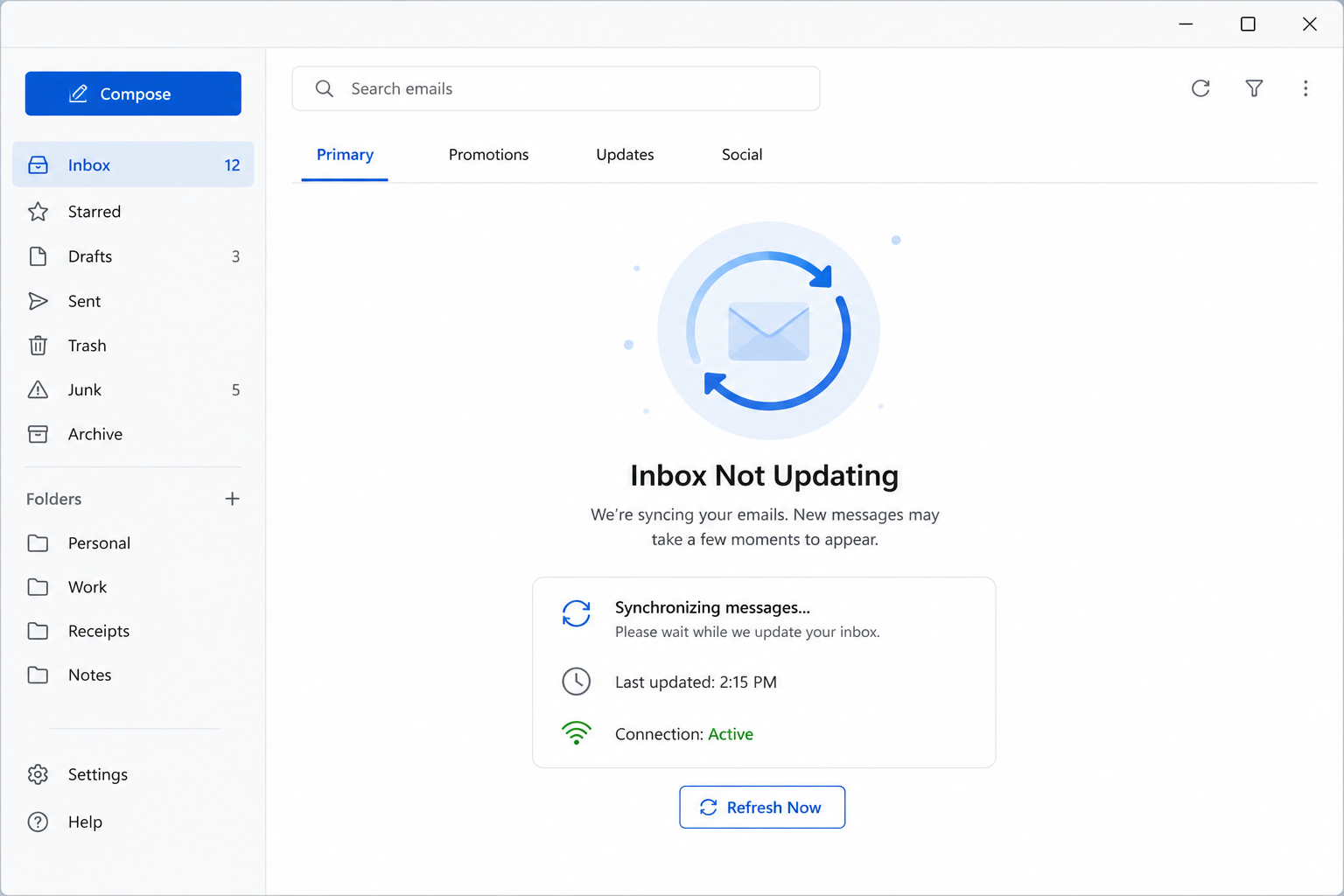
What you see
Inbox shows old messages and new emails do not appear.
What it may mean
Sync may be paused, delayed, or unable to connect to the email server.
Where to check
Sync settings, internet connection, account status
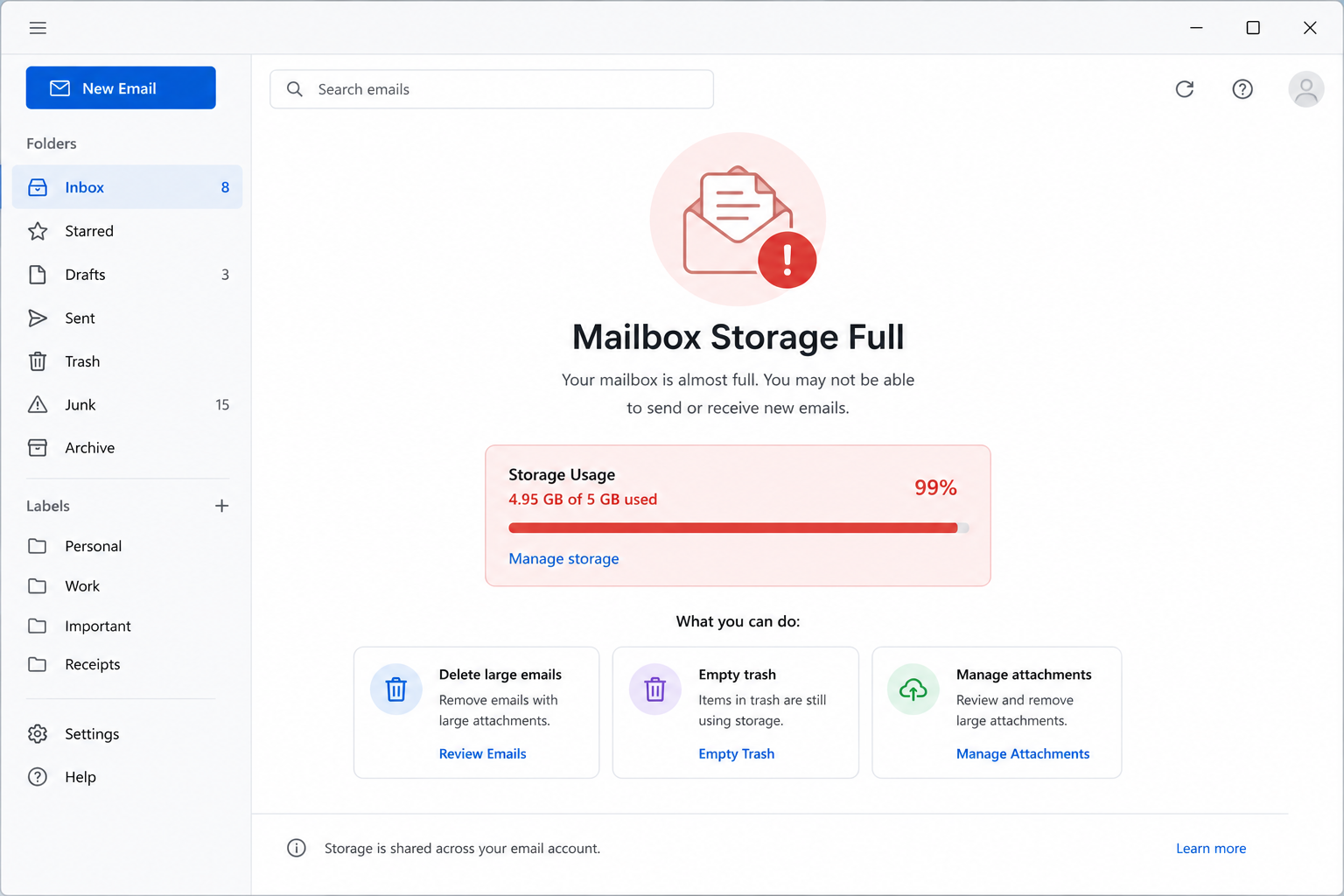
What you see
Email account shows storage full or mailbox quota warning.
What it may mean
New mail may stop arriving when server storage limit is reached.
Where to check
Deleted items, large attachments, storage usage
What you see
Expected emails are missing from the inbox.
What it may mean
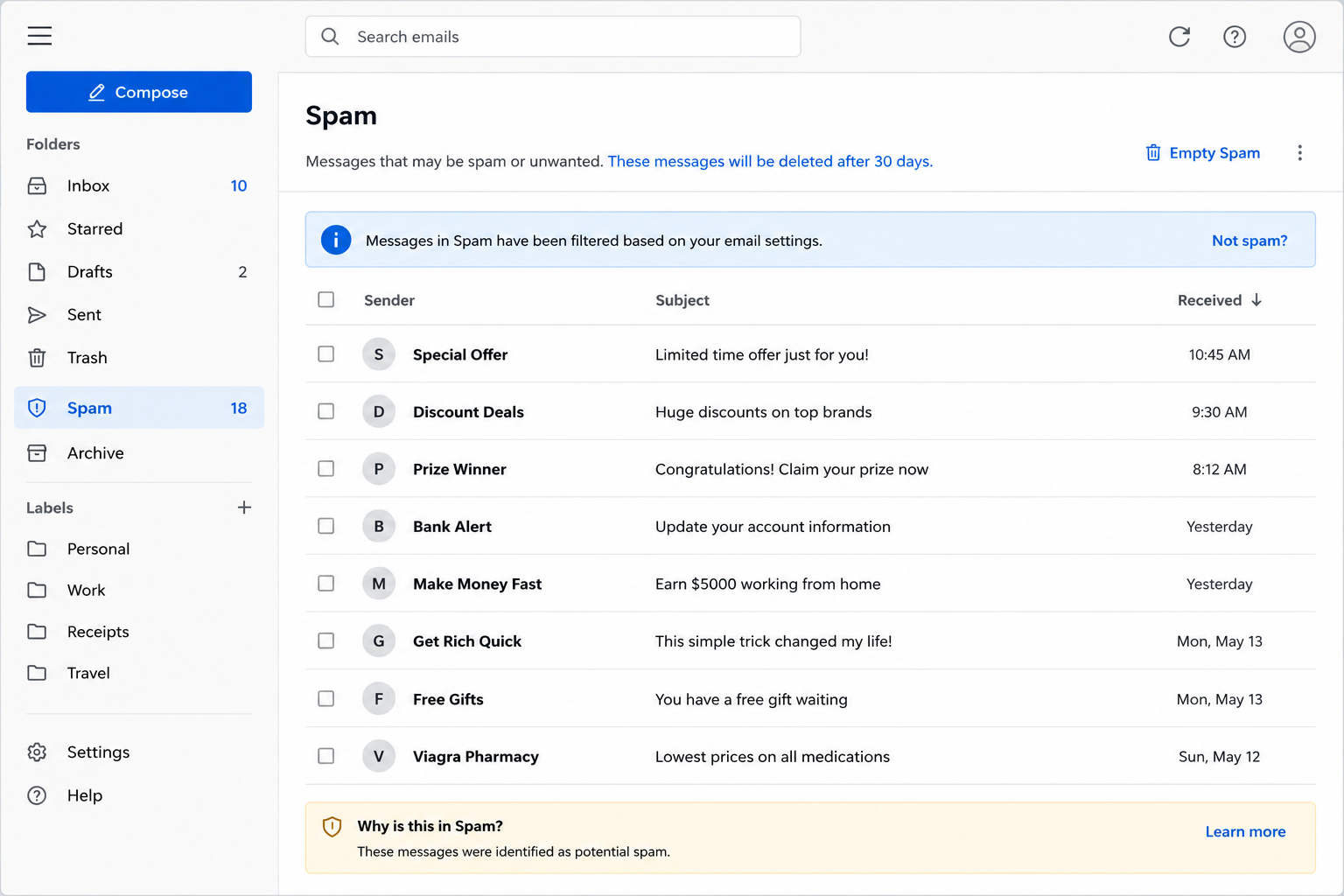
Messages may be filtered into Spam, Junk, Promotions, or another folder.
Where to check
Spam folder, filters, search box
What you see
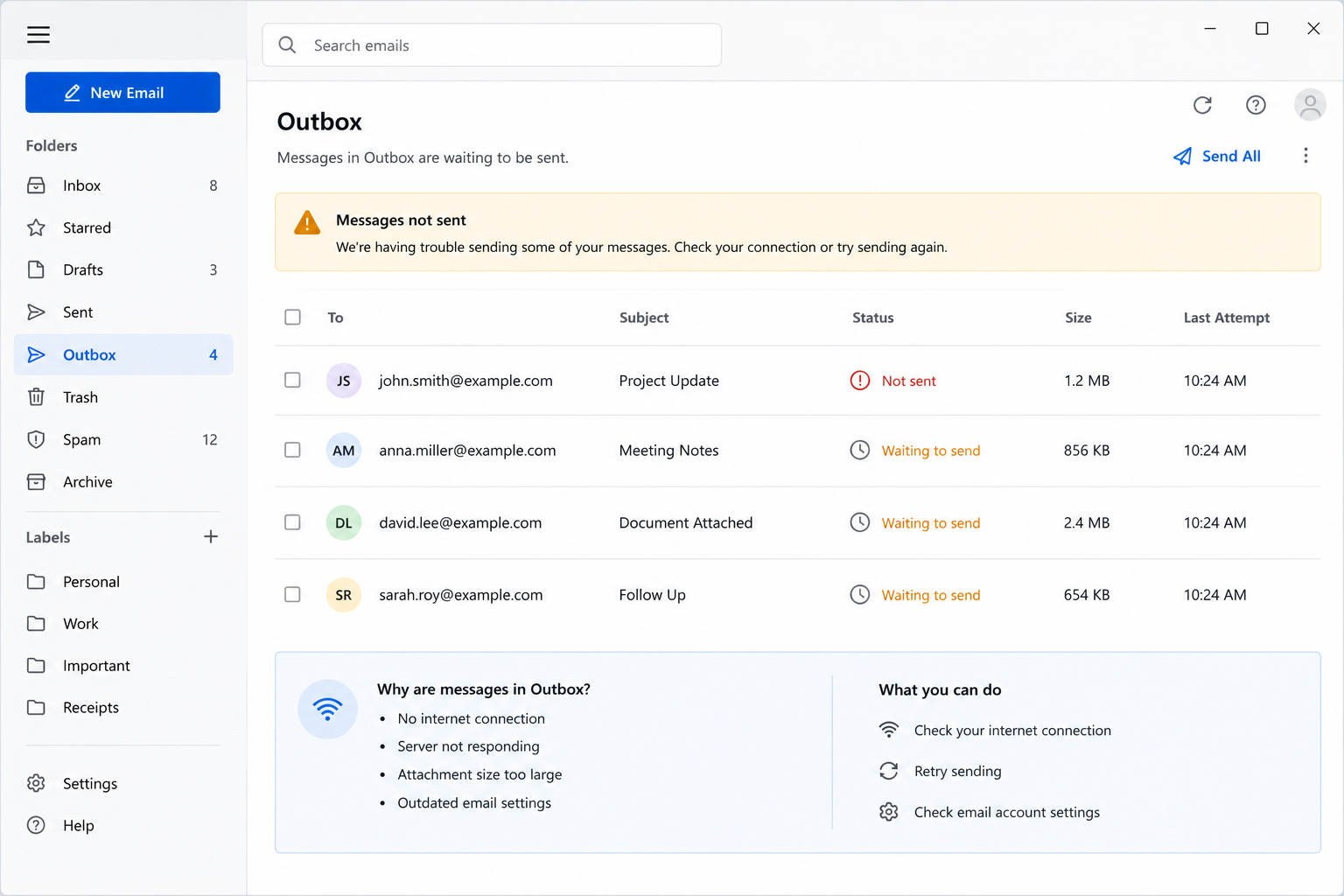
Email stays in Outbox and does not move to Sent.
What it may mean
The app may not be able to send mail because of connection, attachment size, or server settings.
Where to check
Outbox, internet, attachment size, SMTP settings
What you see
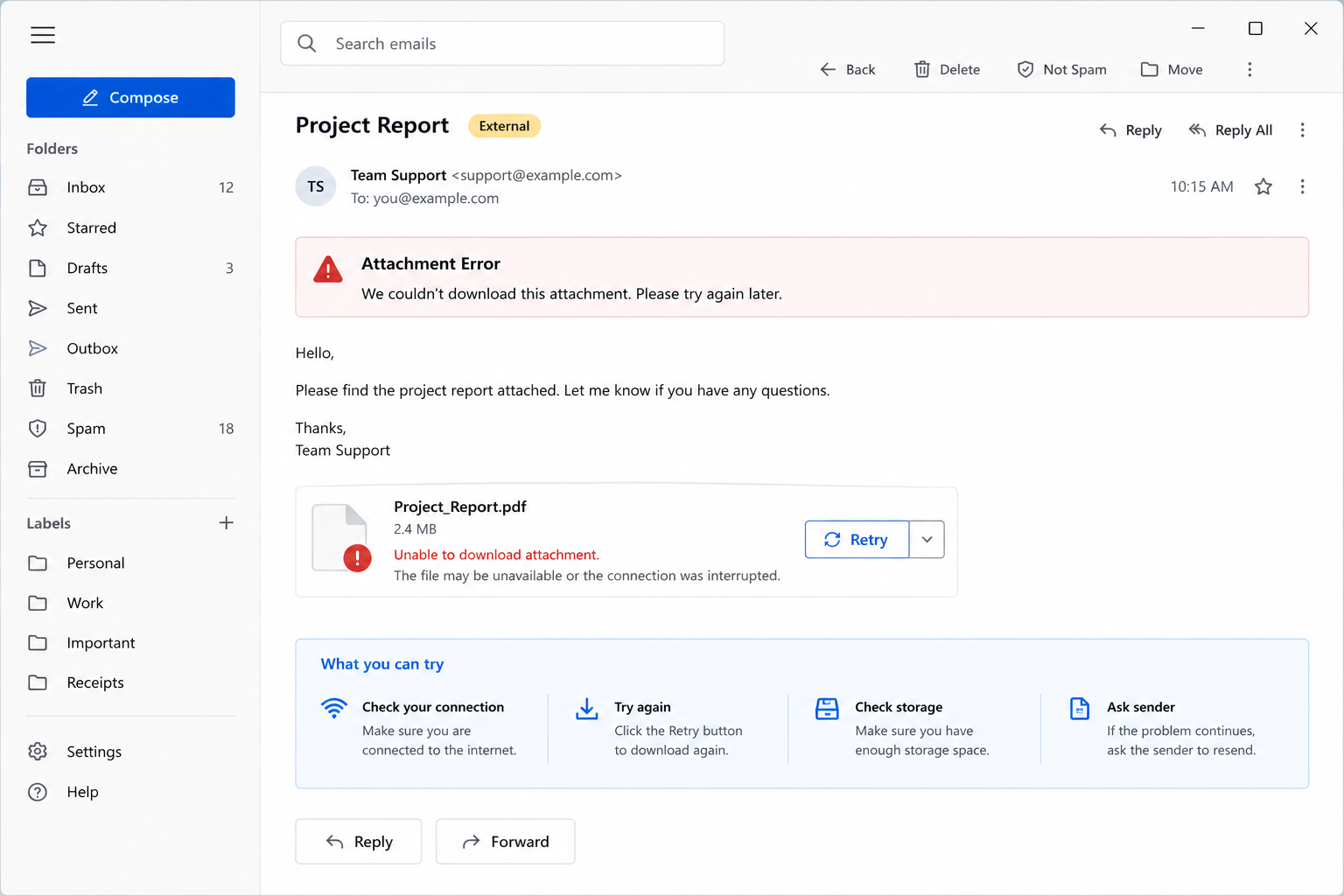
Attachment will not download, open, or upload.
What it may mean
File size, blocked file type, browser/app permission, or network speed may affect attachments.
Where to check
File size, download settings, browser permission
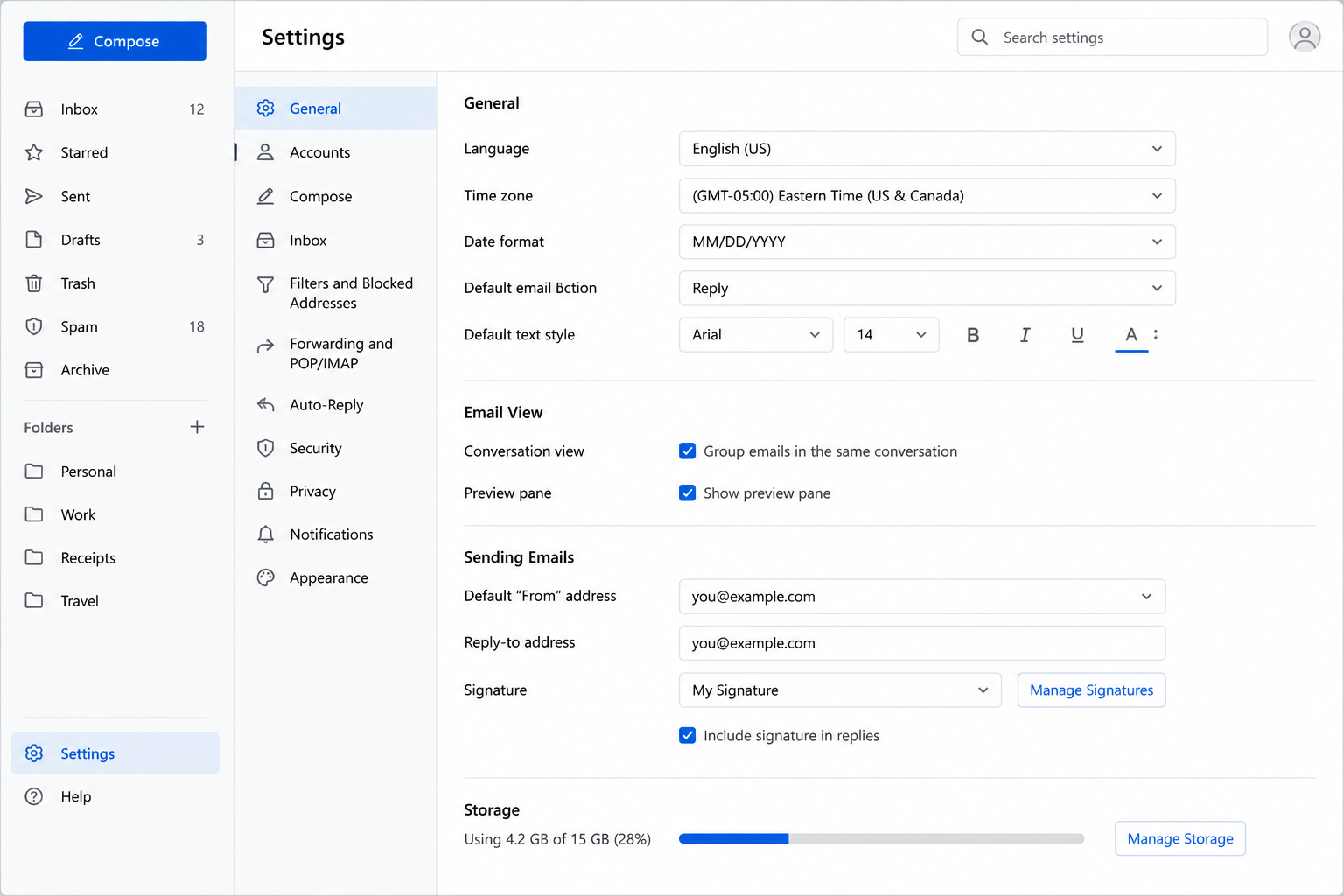
Email apps usually include account, sync, storage, folder, and security areas. These areas help readers understand how messages move and update.
Email address, password, login method, and authentication settings.
Last sync time, refresh frequency, folder updates, and server connection.
Mailbox usage, large attachments, trash folder, and remaining quota.
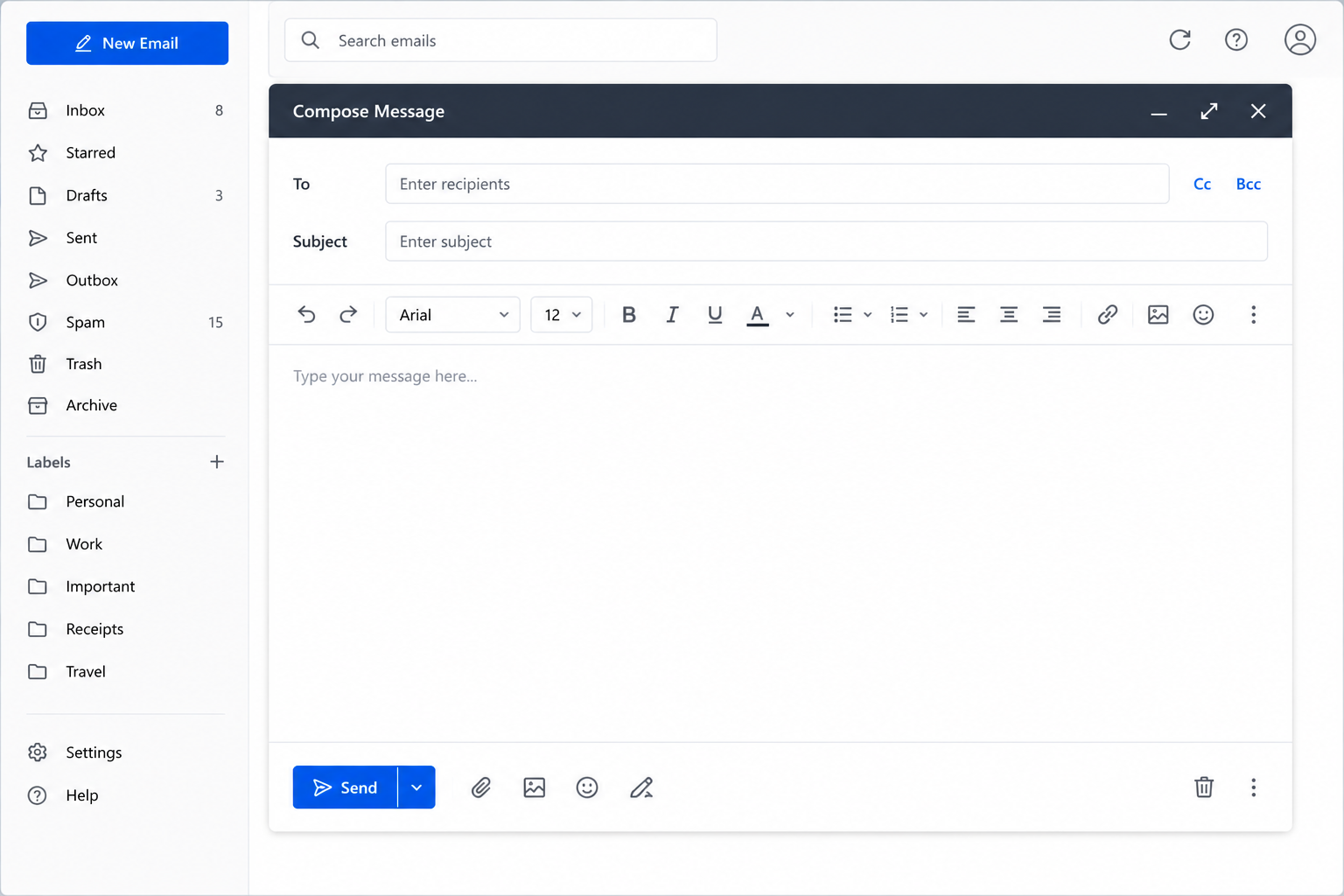
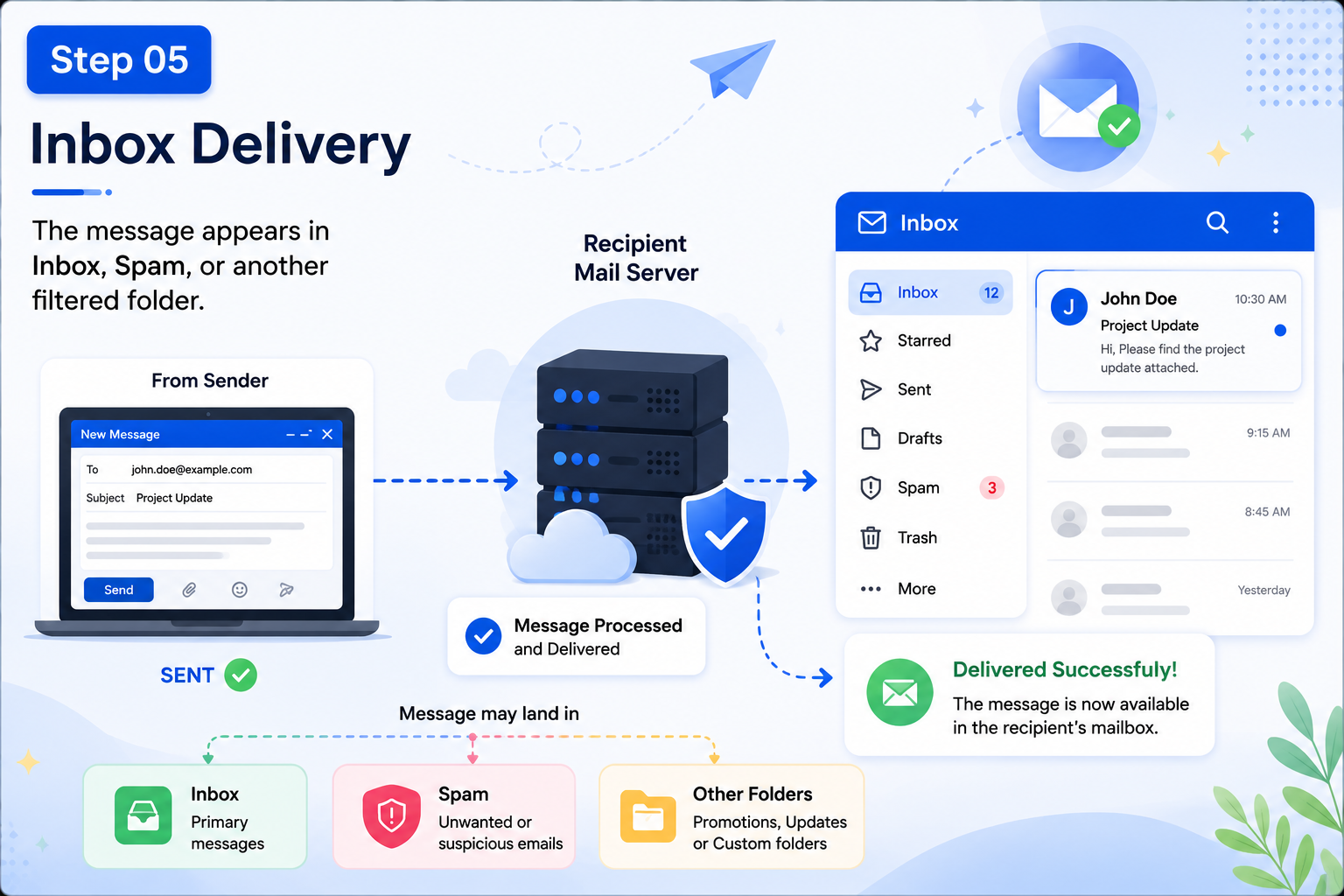
A sender writes a message and selects the recipient address.
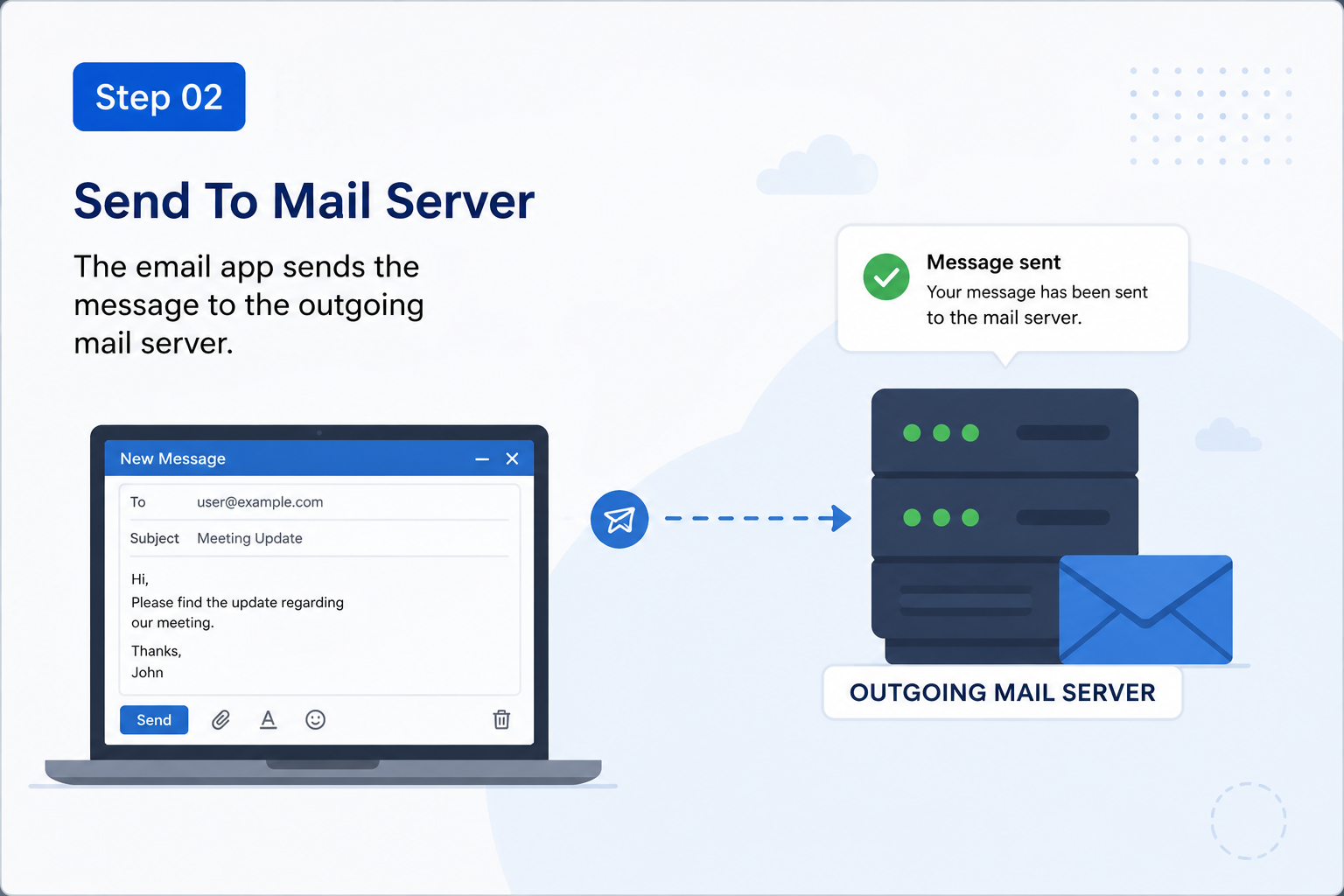
The email app sends the message to the outgoing mail server.
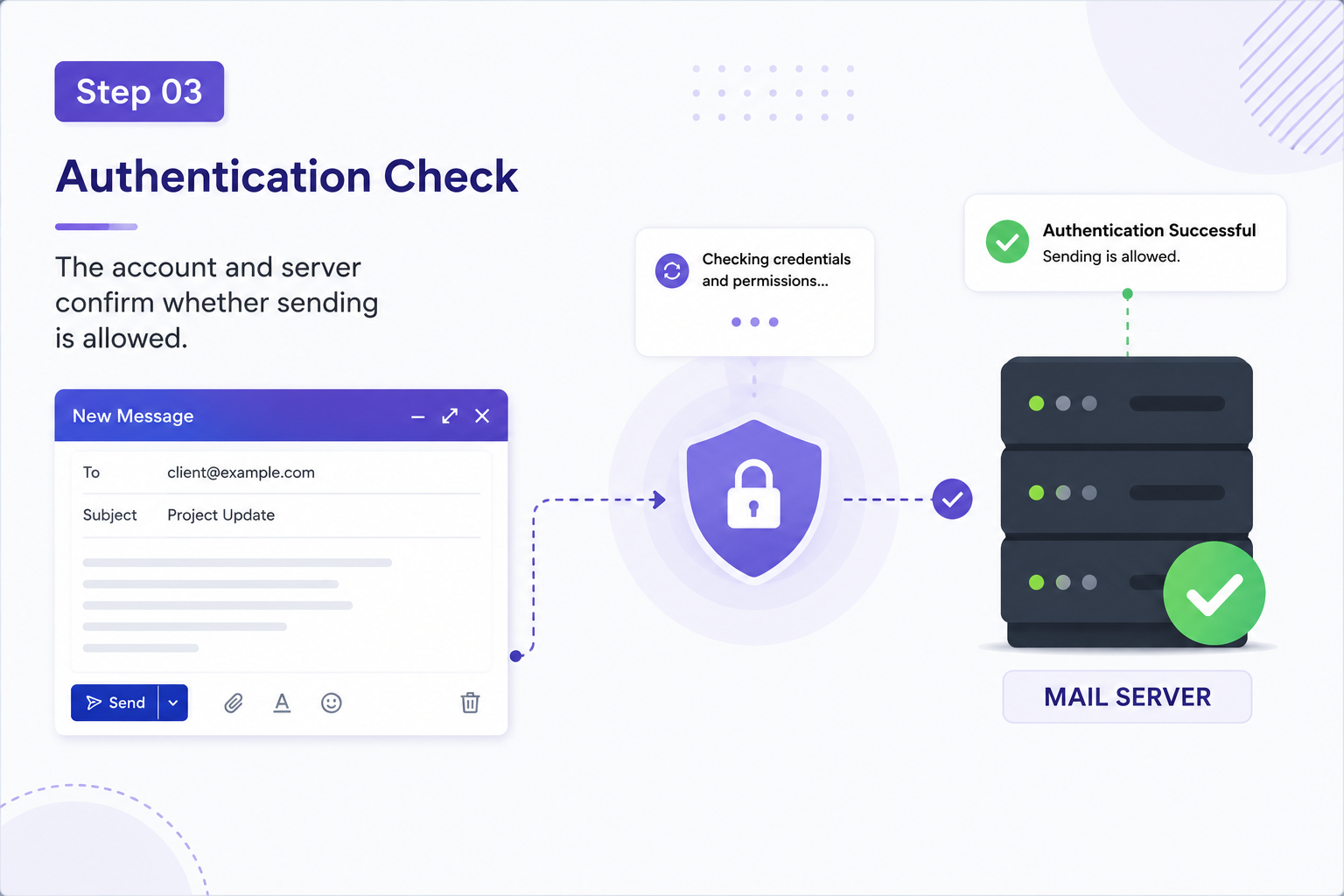
The account and server confirm whether sending is allowed.
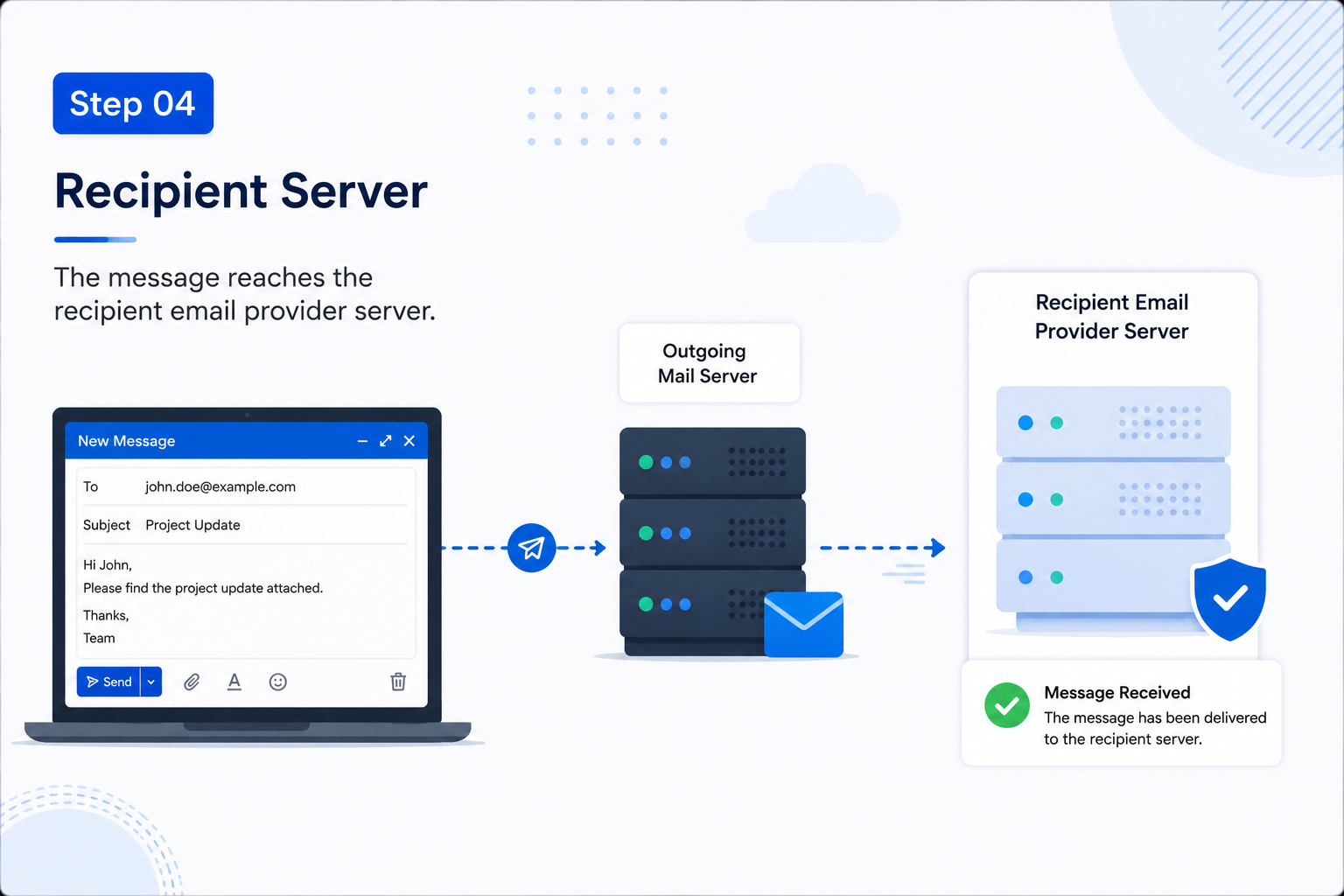
The message reaches the recipient email provider server.
The message appears in Inbox, Spam, or another filtered folder.
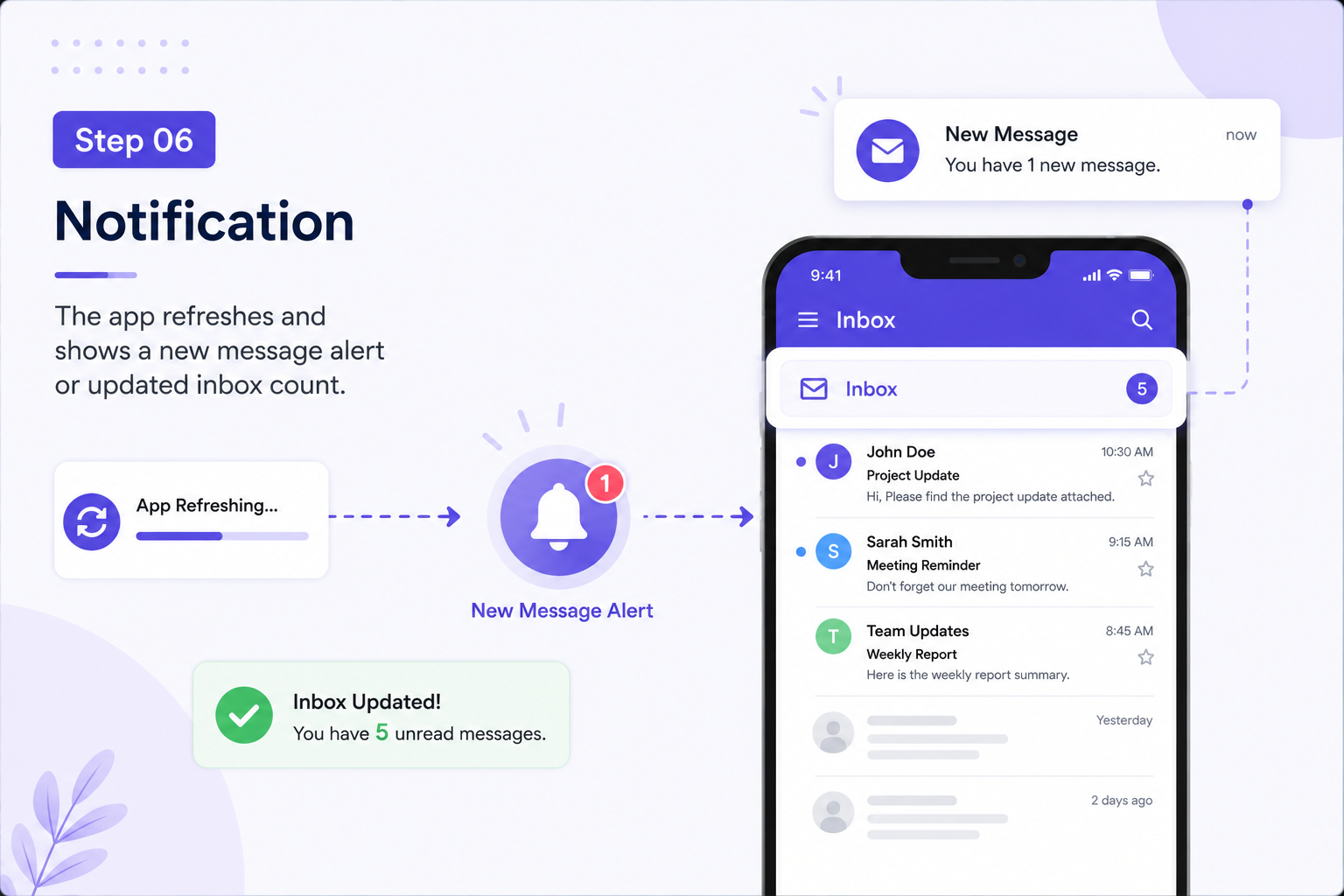
The app refreshes and shows a new message alert or updated inbox count.
Account settings, password page, 2-step verification, recovery email
Sync settings, internet connection, inbox refresh, account status
Spam/Junk, Trash, Archive, filters, search box, categories
Mailbox storage, deleted items, large attachments, sent folder
Outbox folder, attachment size, internet connection, SMTP/outgoing server
File size, blocked file type, browser/app permission, download folder
Simple answers about email login, sync, storage, folders, and message delivery.
It may happen when the saved password is outdated, account security changes, or verification is required.
New mail may not appear when sync is paused, internet is unstable, or the account cannot connect to the mail server.
Messages may be filtered, archived, moved to another folder, or hidden by a selected view.
Deleted emails usually move to Trash or Deleted Items before permanent removal.
Some file types or large files may be blocked by security settings, browser rules, or email provider limits.
New emails may stop arriving until storage is cleared by deleting messages or large attachments.
The message may be waiting because of internet connection, attachment size, or outgoing server settings.
IMAP keeps email synced across devices by storing messages on the mail server.
SMTP is commonly used for sending outgoing email messages.
Synchronization means the app updates local folders with the latest server-side mailbox changes.
Read more educational guides about printer learning, router networking, PC performance, and Win update concepts.